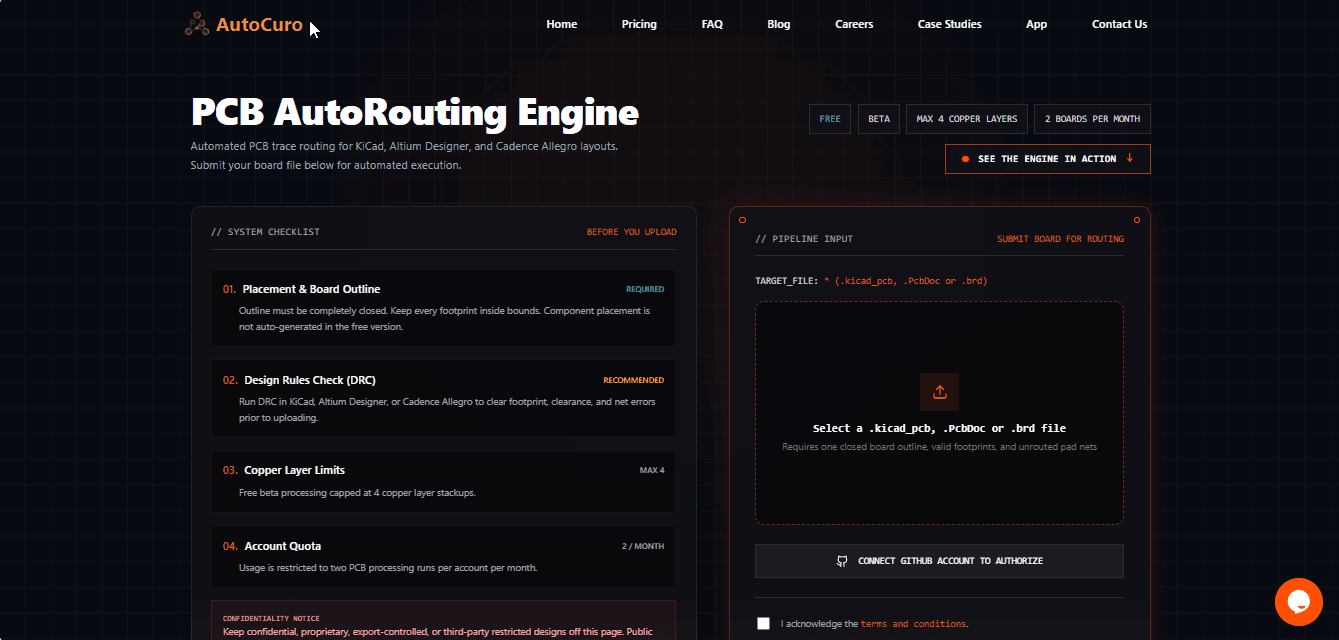
Upload an already-placed board from KiCad, Altium Designer or Cadence Allegro. AutoCuro's AI routing engine routes it in your browser, free, and sends back the routed board with a report of anything it left for you to finish. No new software to install, no schematic to share — just your placed board and a routing engine you can put to the test.
1. Free AI PCB Autorouting Is Here
PCB autorouting has been around for decades. Yet many engineers still route boards by hand, because they want to be sure of every trace before it reaches fabrication. That is a reasonable instinct, and it is exactly the kind of work we think automation should earn its place in.
So we are opening AutoCuro's AI routing engine to engineers as a free, browser-based beta at autocuro.com/app. Whether you work in KiCad, Altium Designer or Cadence Allegro, you can upload an already-placed PCB, let AutoCuro route it, and examine the result in your existing design environment.
The supported board files are .kicad_pcb for KiCad, .PcbDoc for Altium Designer, and .brd for Cadence Allegro. All three are submitted the same way and return the same routed board and routing report. There is no new PCB tool to learn, and you do not upload a schematic — only the placed board.
The routing engine itself is not new. We have run thousands of boards through it to reach the point where we are comfortable opening it up this way. The "free beta" refers to the hosted service and its usage limits, not to the maturity of the engine.
And we would rather you judged the results than took our word for them.
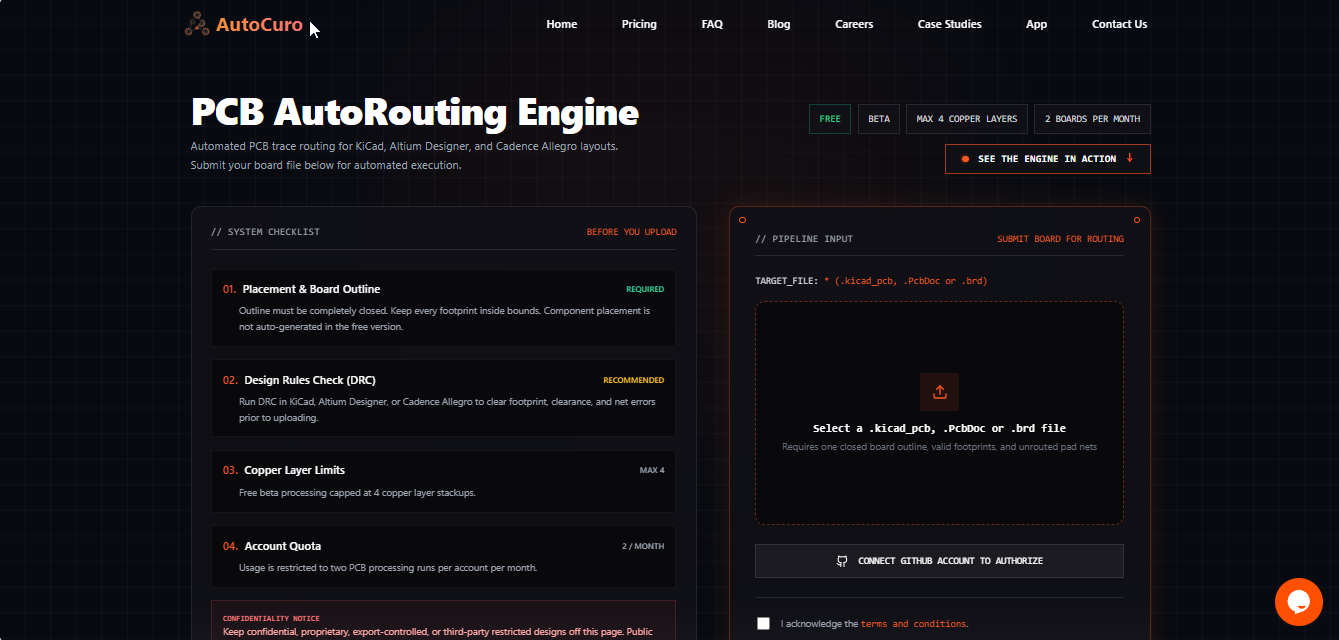
2. From Unrouted to Routed: See AutoCuro in Action
The clearest way to understand the engine is to see a real board go through it: components placed and nets unrouted on the way in, then the routed board opened in an EDA tool.
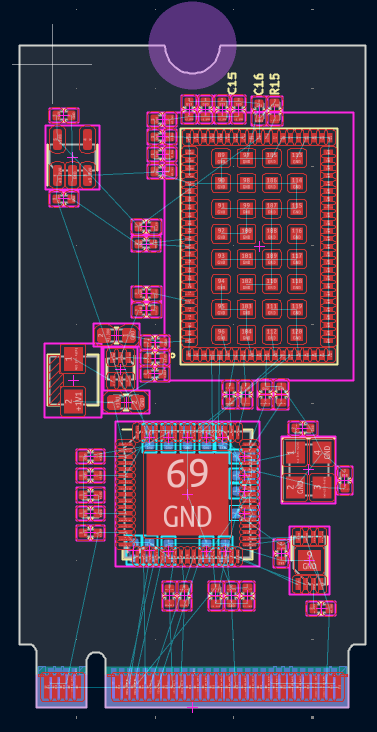
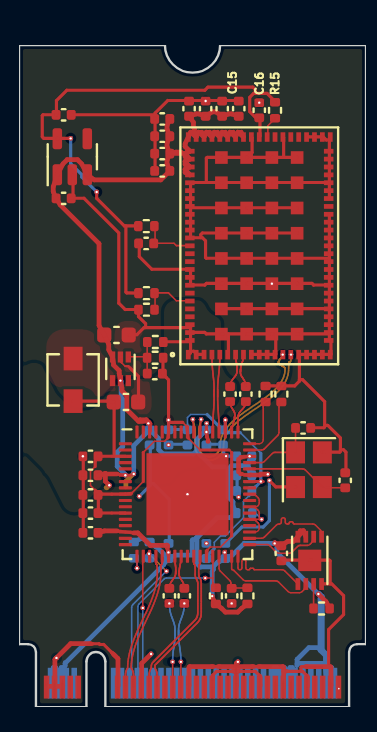
Results for This Board
- Total vias: 49
- Overall routability: 99.6% (278 of 279 connections)
- Diff pairs routed: 8 of 8
- Copper layers: 4
- Power and ground polygons generated: 5 — GND (F.Cu, In1.Cu), +3.3VA (In2.Cu), +1V1 (In2.Cu), Net-(L1-Pad1) (F.Cu)
- Routing time: 3 min 35 s
You do not have to take a screenshot on trust. Boards generated with AutoCuro are published in the DESIGNS folder of our GitHub repository, including an RP2040 2-layer PCB, a Teensy 4.1 4-layer PCB and a dsPIC30F6010A development board. Open any of them in your own tool and inspect the routing for yourself.
3. What Happens Behind the Scenes?
The free beta automates PCB trace routing, not the whole design process. Component placement is not generated in the free version. You position the footprints and define the board outline; the engine takes it from there.
AI-selected constraints, without a schematic
Because you upload only the board file, the engine does not have your schematic. Instead it uses AI to work out routing constraints from the information in the placed board, and applies them during routing. If you already know the constraints a net needs, check the routed result against them — the selected constraints are the engine's best judgement, not a copy of your design intent.
Routing the way engineers approach it
Rather than treating every net the same, the engine handles different kinds of nets the way an engineer typically would:
- High-speed nets: identified and routed with their own constraints instead of general-purpose signal rules.
- Differential pairs: routed together as pairs rather than as two independent traces.
- Power planes: generated using an approximate power-plane calculation. Treat this as a starting estimate and confirm it against your board's actual current requirements.
Signal integrity, EMI/EMC and thermal performance still need your own analysis. The engine applies routing practice; it does not replace simulation or compliance testing.
DRC checks and the routing report
After routing, the engine runs design rule checks and corrects the violations it can, to the extent possible. Anything it cannot resolve is listed in the routing report, so you know exactly which areas need manual attention. We describe our approach in more detail in How We Automate KiCad PCB Routing and How We Automate Altium PCB Routing.
4. Put Your PCB to the Test
The best review comes from your own board. If you have a pre-placed KiCad, Altium Designer or Cadence Allegro design with four copper layers or fewer, route it and tell us how the result holds up in your tool.
How to submit a board
- Finish component placement in KiCad, Altium Designer or Cadence Allegro. Check that the board outline is closed and every footprint is inside it, then save the board.
- Run your tool's design rule check. Resolving footprint, clearance and net errors before you upload is recommended.
- Sign in with your GitHub account at autocuro.com/app and upload a .kicad_pcb, .PcbDoc or .brd board file.
- When the job finishes, we email the routed board and the routing report to the verified email address on your GitHub account. The report lists any DRC issues the engine could not resolve.
Free Beta Limits
- Boards can have at most four copper layers.
- Each account can submit two boards per month.
- Accepted formats: KiCad (.kicad_pcb), Altium Designer (.PcbDoc) and Cadence Allegro (.brd).
- Components must already be placed; the free version does not auto-generate placement.
- Boards submitted through the web app may be published in our public GitHub repository, so please do not upload proprietary, export-controlled or third-party restricted designs.
A routed board is a starting point, not a finished design. Treat it as a layout to refine in your own tool, and put it through an engineer's review and your normal checks before it goes to fabrication. Then tell us what worked and what still needed manual work, at admin@autocuro.com — honest reviews from engineers are the most useful input we get.
5. What's Next: The Desktop App
The web app keeps things simple: place your board, upload it, get it routed. For teams that need more control, or that cannot share a design at all, we also offer a paid desktop app.
The desktop app gives you more control over how the board is routed. You can run the design in separate stages, review the output at each stage and repeat a stage before moving on, set predefined component positions and keep-out zones, and use automated component placement as well as routing.
It also runs entirely on your own machine. Your design files stay there and are not added to GitHub, which makes it suitable for work you cannot share publicly.
You can learn more about the desktop app at autocuro.com or by writing to us at admin@autocuro.com.